Pioneer in Offering CRM Solutions since 2010...
Pioneer in Offering CRM Solutions since 2010...
 ChatGPT Development
 Claude AI Development
 Gemini AI Development
 Microsoft Copilot Development
 DeepSeek AI Development
 LangChain Development
 CrewAI Development
 AutoGen Development
 LangGraph Development
 Pinecone Development
 Weaviate Development
 AI Workflow Automation
 Qdrant Development
 Cursor AI Consulting
 GitHub Copilot Consulting
 Enterprise AI Search
ChatGPT Development
Claude AI Development
Gemini AI Development
Microsoft Copilot Development
DeepSeek AI Development
LangChain Development
CrewAI Development
AutoGen Development
LangGraph Development
Pinecone Development
Weaviate Development
AI Workflow Automation
Qdrant Development
Cursor AI Consulting
GitHub Copilot Consulting
Enterprise AI Search
How an embeddable AI chatbot was added to the website and CRM so visitors can ask questions from a knowledge base, capture leads, book appointments, open tickets, and continue the same chat session — while CRM users manage conversations from the inbox
Website visitors often need an answer before they fill a form, call sales, or leave the page. Static FAQs and contact forms lose context. Live chat that depends only on human agents misses after-hours traffic and creates uneven replies.
Each visitor keeps one chat session. Follow-up questions continue the same history. Leads, appointments, tasks and tickets are created only when the administrator enabled those actions. CRM users can monitor conversations in the inbox, including realtime updates when the WebSocket service is enabled.
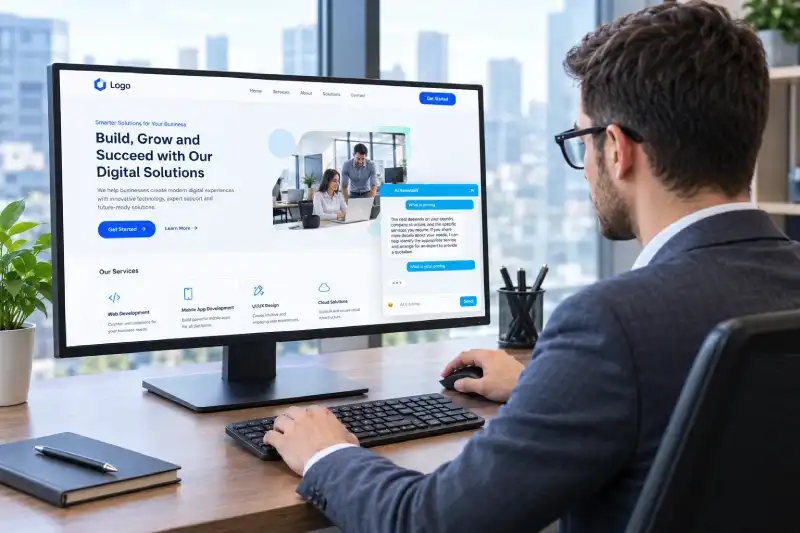
Website AI Agent brings a configurable AI chatbot into the CRM and the public website. An administrator defines the agent prompt, guardrails, knowledge sources, widget look, and which CRM actions are allowed. A small embed script loads the chat widget on approved domains.
Website visitors need an answer while they are on the page, not after they abandon the form or wait for business hours.
Ask about product, pricing, delivery or support hours. Qualify a lead and share name, email, phone or need. Book or check an appointment. Create or look up a support ticket. Continue a conversation later on the same device.
Doing this only with human chat agents means missed nights and weekends, slow first response, and inconsistent scripts. A generic public chatbot is not tied to CRM records, knowledge files, or the actions the business approved.
The business requirement was to let the visitor chat naturally on the website, and to let the CRM agent answer from knowledge, run allowed actions, and keep the conversation visible to the team — all in one session.
The key QA challenge was validating a multi-component workflow involving a public website widget, session history, external AI services, knowledge sources, configured CRM actions, and human-agent workflows. Testing therefore covered the entire visitor journey rather than only checking whether the chatbot displayed a response.
QA automation supports repeatable regression validation of the main agent configuration, website widget, Knowledge Base, visitor conversation, CRM actions, ticket search, appointment/task workflows, human handover, return-to-AI, and conversation closure.
Extension setup, activation, invalid/missing license behavior
Provider/model, instructions, history, Safety Rails, Actions, widget, and embed settings
Source management and relevance of AI responses
Visibility, branding, allowed domains, embed script, visitor interaction
Credentials, responses, timeouts, failures, provider availability
Lead, appointment, task, and ticket create/search workflows
Conversation search, status filters, history, and updates
Take over, human replies, return to AI, close conversation
Invalid input, missing data, unavailable services, and core CRM regression
Website AI Agent was built as an administrator-configured chatbot for vTiger CRM and the public website.
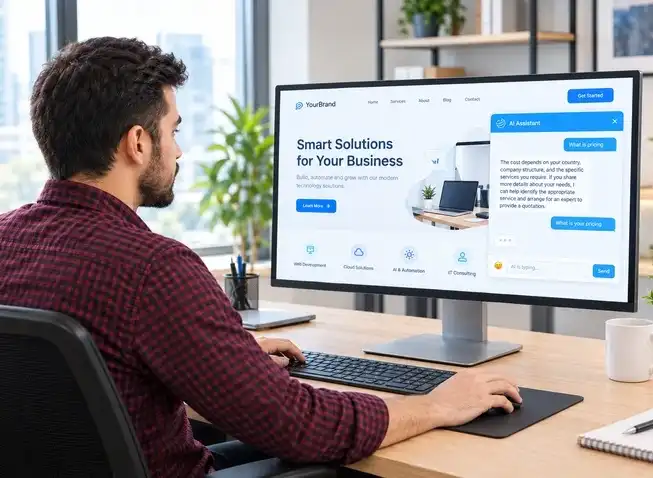
Administrators open Website AI Agent settings and create an agent. They choose the LLM provider and model, write instructions and guardrails, upload knowledge files or website URLs, style the widget, restrict allowed domains, and enable only the CRM actions the business wants.
When a visitor opens the site, embed.js loads the widget. The widget calls the public API with the agent public key, starts a session, and exchanges messages. Each turn updates session history until the visitor leaves or the agent closes the conversation.
A follow-up message uses the same session token, so the CRM and the chatbot keep that conversation. This is separate from the CRM web login session.
The objective was not to let the model change the CRM without a result the visitor and the business can trust.
The objective was to turn a typed question into a clear reply, and — when configured — into a lead, appointment, task or ticket the team can work.
Answer from the agent prompt, knowledge files and website sources, and guardrails.
Greet the visitor, keep replies concise, and continue multi-turn history within the configured limit.
Capture a lead (contact / lead fields) when Capture Lead is enabled.
Create or search appointments, tasks and tickets when those actions are enabled.
Use OpenAI, Grok or Gemini with the API key stored only on the server.
Ask only when a value cannot be decided from the conversation.
| Capability | What it does |
|---|---|
| Embeddable Widget | Loads a branded floating chat on the website via public key. |
| Knowledge Reply | Uses admin prompt, uploaded docs / website URLs and guardrails as the source of facts. |
| Capture Lead | Creates or updates CRM contact/lead data from the chat when enabled. |
| Appointments | Books or searches appointments with working-hour rules when enabled. |
| Tasks | Creates or searches CRM tasks from the conversation. |
| Tickets | Creates or searches support tickets. |
| One Conversation | Session token and history stay with the visitor chat. |
| CRM Inbox | CRM users review sessions and messages; optional WebSocket for live updates. |
| Domain Control | Optional allowed_domains list limits where the widget may run. |
| License Gate | Public API and settings require an active CRMTiger license. |
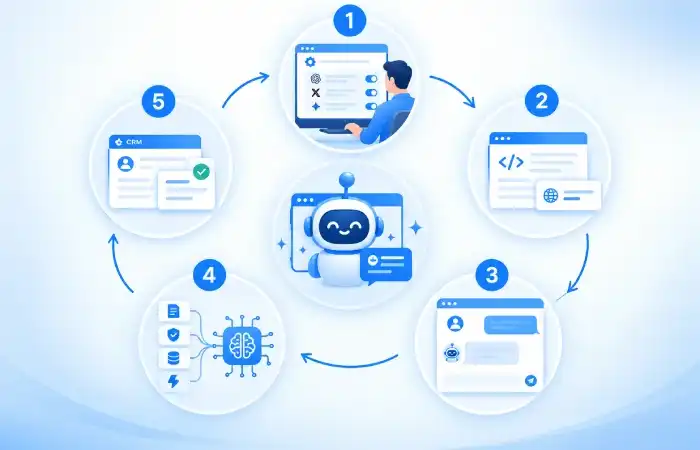
An administrator creates the agent, selects OpenAI, Grok or Gemini, sets the model and API key, writes instructions and guardrails, attaches knowledge, styles the widget, sets allowed domains, and enables actions.
The site includes embed.js with the agent public key. The script loads widget.js and CSS, then requests public config from api.php.
The widget opens a session (visitor id + session token), shows the welcome message, and posts each user message to the API.
The service builds the system prompt (instructions, guardrails, knowledge, enabled actions), sends history to the LLM, and returns a visitor-facing reply plus an optional action payload.
If the model chooses an enabled action, ActionExecutor runs it in the CRM and the visitor hears the outcome in chat. Otherwise the session stays open for the next message.
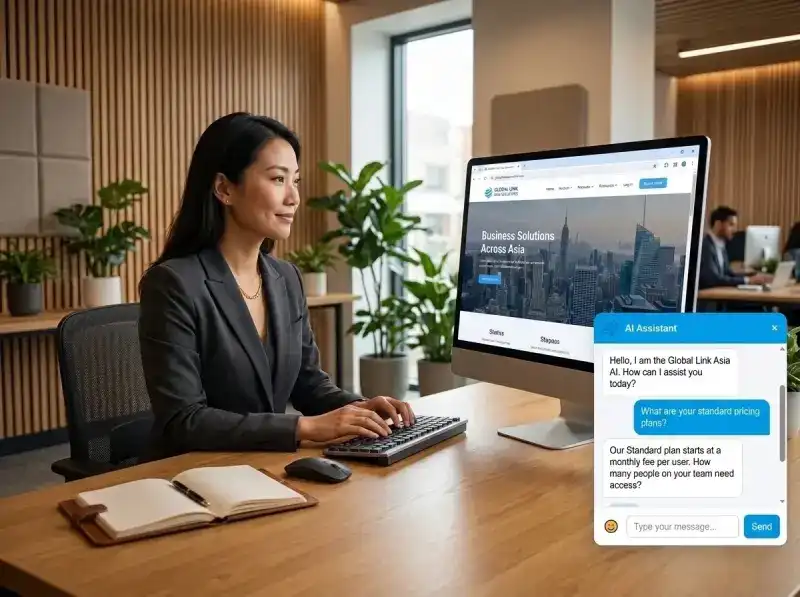
The visitor asks about pricing or product fit. The agent replies only from the knowledge base and prompt, keeps the answer short, and asks one clarifying question when needed.
The visitor asks about pricing or product fit.
The agent replies only from the knowledge base and prompt, keeps the answer short, and asks one clarifying question when needed.
““Our Standard plan starts at a monthly fee per user. How many people on your team need access?”
The visitor is ready to talk to sales. With Capture Lead enabled, the agent collects missing name, email or phone across turns, creates the CRM record, and confirms what was saved.
Recognize when a visitor wants to connect with your sales team.
With Capture Lead enabled, the agent collects missing name, email or phone across turns.
The agent creates the CRM record, and confirms what was saved.

The visitor reports an issue. With Create Ticket enabled, the agent gathers the missing title or details, creates the ticket as configured, and tells the visitor the ticket was opened — or that it was not created.
Understand the visitor's problem and determine the information needed.
With Create Ticket enabled, the agent gathers the missing title or details.
The agent creates the ticket as configured, and tells the visitor the ticket was opened — or that it was not created.
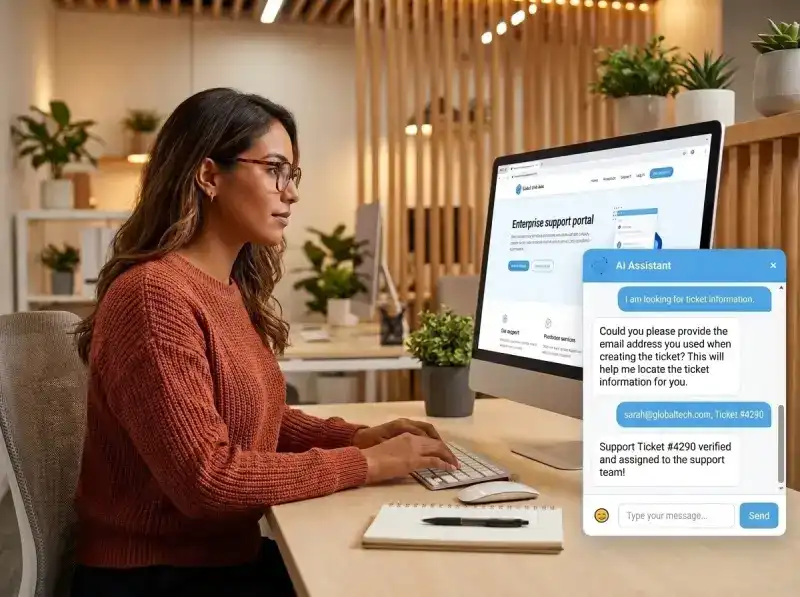
Widget loading agent branding and API base.
GET api.php?action=config
New or resumed chat for this visitor.
POST action=session; store session_token
Visitor and bot exchanging messages.
POST action=message; update history
CRM user viewing / responding.
Settings Inbox; optional WebSocket presence
Conversation ended or handed off.
No further visitor AI turns (as configured)
The service always tracks: system_prompt — built from agent instructions, guardrails, knowledge and enabled actions , history — recent user and assistant turns within history_limit, action_type / action — CRM action chosen by the model when enabled, session_token — identifies the same website conversation
In simple terms, the visitor talks to the website widget, and the CRM remains the system that stores records, actions and inbox visibility.
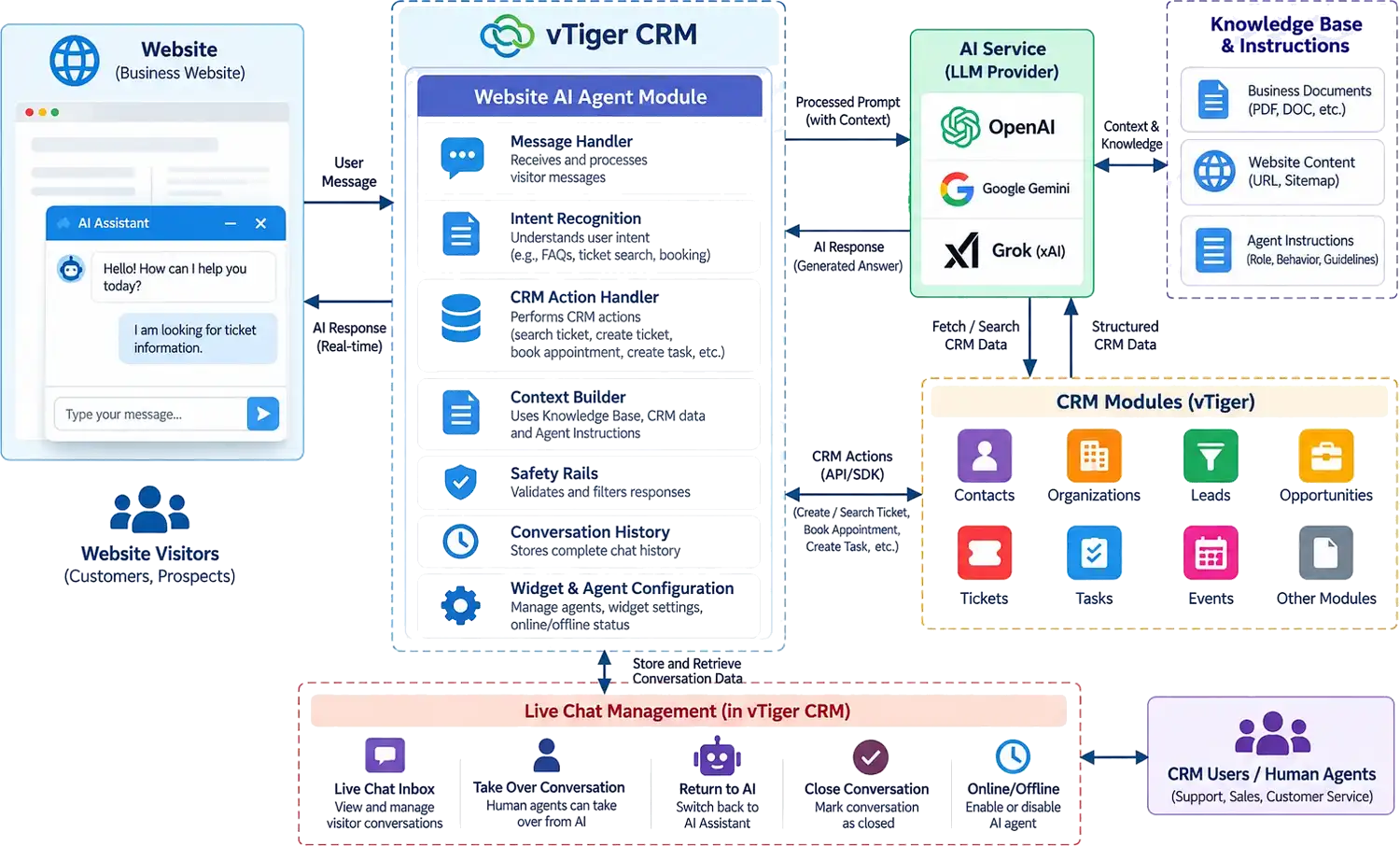
API keys stay encrypted on the CRM server with the agent record. The website embed never receives the provider key. The same chat and action behavior is used whichever provider is selected.



Visitors wait for staff to become available.
Answers immediately from knowledge instead of waiting for staff.
Staff answer questions and collect visitor details through manual interactions.
Speaks from knowledge without opening a CRM form first.
Staff manually collect visitor details and enter them into the CRM.
Writes contact/lead fields into the CRM when enabled.
Staff manually handle requests and create or search CRM records.
Creates or searches records from chat when enabled.
Branding and response experiences may vary across interactions.
Widget name, color, icon and welcome message are configured once.
Visitors may need to repeat their request when continuing a conversation.
History stays on the session so the next message continues the request.
The visitor's request and the business's follow-up may require separate manual handling.
The visitor sees the answer; the business sees the CRM outcome and inbox thread.
Visitors get an answer on the page instead of waiting for email or business hours.
Qualification and booking can continue when human agents are busy or offline.
The agent can ask for a missing detail and finish the same request on the next message.
Administrators write the instructions, knowledge and guardrails that shape every reply.
Only enabled actions run, and the widget only loads on allowed domains when configured.
Lead, ticket, task or appointment — or a clean informational reply — with the thread visible in Settings.
The public API serves only agents that are active and licensed. CRM actions follow the agent configuration.
API keys are stored with the agent and are not exposed to the browser. The embed script only uses the public key. License validation uses server-side form POST to the CRMTiger license endpoint.
Administrators control:
The same pattern can grow without changing how the website embeds the widget.
CRM records could be updated with information provided through a follow-up message in the same session.
Additional CRM modules could be supported using the same action framework.
Deeper streaming capabilities could reduce time-to-first-token and help visitors receive responses sooner.
Administrators could review usage and conversion history to better understand widget performance.
Richer post-chat summaries could be saved directly to the CRM for future reference and follow-up.
If something necessary is still missing, the agent asks, the visitor replies in the same chat, and the original request continues.
The agent does not silently invent a person, company or ticket that was never mentioned. It asks.







Our sales manager reaches out to you within a few days after analyzing your business requirements.
Meanwhile, we sign an NDA to ensure the highest level of privacy.
Our pre-sale manager presents project estimates and an approximate timeline.


 AI Consulting Services
 RAG Development
 LLM Development
 AI App Development
 AI Software Development
 AI Integration Services
 AI Agent Development
 AI Chatbot Development
 LLM Fine-Tuning
 Generative AI Integration
 AI Copilot Development
 Data Analytics
 Data Warehousing
 Data Annotation
 AIOps
 DevOps Consulting
 DevOps Automation
 SRE
 LLM Observability
 AI for Healthcare
 AI for CRM
 AI for Customer Support
 AI for Manufacturing
 AI for Real Estate
 AI for Education
 AI for Finance
 AI for E-Commerce
 AI/ML Consulting
 Object Detection
 ChatBot Development
 Computer Vision
 Natural Language Processing
 Data and Ai
 Mobile Apps Development
 Chrome Extension Development
 Odoo Development Services
 Odoo Implementation Services
 Odoo Customization Services
 Odoo Integration Services
 Odoo Migration & Upgrade Services
 Odoo ERP Consulting Services
 Odoo Support and Maintenance Services
 Odoo AI & Automation Services
 Salesforce Consulting
 Salesforce Product
 Salesforce Case Study
 SuiteCRM Consulting
 SuiteCRM Addons
 Devops
 AWS Consulting
 Digital Ocean Consulting
 OnPrem. Server Support
 Cloud Migration Services
 Salesforce WhatsApp Business API
 Salesforce WhatsApp Web Integration
 Salesforce Telephony Integration
 Dentrix To GHL
 Outlook Integration
 MindBody Integration
 Zillow Integration
 Open Dental To GHL
 Number Plate Recognition
 Taxi App & Mobility
 Smart Bus & Fleet System
 HR Solutions (Salesforce)
 Quick HRMS (SuiteCRM)
 CRM For Telecom Industry
 CRM For Travel
 CRM For Call Center
 CRM For Education
 CRM For Healthcare
 CRM For Clinics
 CRM For Locksmith
 CRM For Law
 NodeJS
 Python
 .NET
 Classic ASP
 Core PHP
 ReactJS
 AngularJs
 Android
 iOS
 Flutter
 React Native
 AR/VR
 CodeIgniter
 Laravel
 Hire .NET Core Developer
 Hire Salesforce Developer
 Hire Odoo Developers
 CRM For Legal Practice
 Online Photo Booking System
 Task Scheduler for Construction Industry
 Patient Management Software
 Dentist Management System
 Food Delivery App
 CRM For Aviation Company
 Salesforce Marketing Cloud for Online Retail Store
 Salesforce Implementation & Customization For RFID Supplier
 Ecommerce System Integration With ERP
 CRM For Real Estate Company
 Find Nearby Salon
 Taxi Booking App
 CRM For Travel Agency
 Case Management Software
 Engineering Company Website
 CRM For Telecom Industry
 Company Profile
 SuiteCRM Profile
 Telco CRM white paper
 AI enabled speech analysis